Desktop application with Electron & React (CRA)
When it comes to building cross-platform Desktop applications with Javascript, Electron is one of the most reliable choices for developers.
In this post, we will learn to create a production-ready configuration of React with Electron.
To begin with we need to create our project with create-react-app (CRA).
npx create-react-app electron-react
The next thing we will do is to create a new folder named electron inside of electron-react. This is where we will put all of our electron code. We will also install electron & electron-builder (to package our application) as dev dependencies.
npm i -D electron electron-builder
We need to make a few changes to the package.json file. First, we need to add the main property to our package.json file, this will be the entry point to our electron application.
"main": "electron/main.js",
"homepage": "./",
Next will add a few scripts to start and package our electron application.
"start": "export BROWSER=none && react-scripts start",
"start-win": "set BROWSER=none && react-scripts start",
"start-electron": "export ELECTRON_START_URL=http://localhost:3000 && electron .",
"start-electron-win": "set ELECTRON_START_URL=http://localhost:3000 && electron .",
"build": "react-scripts build",
"build-electron": "mkdir build/src && cp -r electron/. build/electron",
"build-electron-win": "mkdir build\\src && Xcopy /E /I /Y electron build\\electron",
"package": "npm run build && npm run build-electron && electron-builder build -c.extraMetadata.main=build/electron/main.js --publish never",
"package-win": "npm run build && npm run build-electron-win && electron-builder build -c.extraMetadata.main=build/electron/main.js --publish never",
Note: The scripts that end with -win are for the Windows platform, if you are on Windows you need to run these scripts.
Finally, we will add the build property which will be used by electron-builder to package the application. "build": { "appId": "com.example.electron-react", "productName": "electron-react", "files": [ "build/**/*", "node_modules/**/*" ], }
Now that all of our configurations are done we can finally proceed to write some code. Create a main.js file in the electron/ folder and add the following code.
const { app, BrowserWindow } = require('electron');
const path = require('path');
const url = require('url');

let mainWindow;

const createWindow = () => {
  mainWindow = new BrowserWindow({ width: 600, height: 600, show: false });
  mainWindow.loadURL(
    !app.isPackaged
      ? process.env.ELECTRON_START_URL
      : url.format({
          pathname: path.join(__dirname, '../index.html'),
          protocol: 'file:',
          slashes: true,
        })
  );

  mainWindow.once('ready-to-show', () => {
    mainWindow.show();
  });

  mainWindow.on('closed', () => {
    mainWindow = null;
  });
};

app.on('ready', createWindow);

app.on('window-all-closed', () => {
  if (process.platform !== 'darwin') {
    app.quit();
  }
});

app.on('activate', () => {
  if (mainWindow === null) {
    createWindow();
  }
});
Note: app.isPackaged is a boolean flag that is true if the application is packaged and false otherwise, this behavior can be used to determine whether the app is running in a production or development environment.
Go ahead and run npm start and npm run start-electron. You should see something like this:
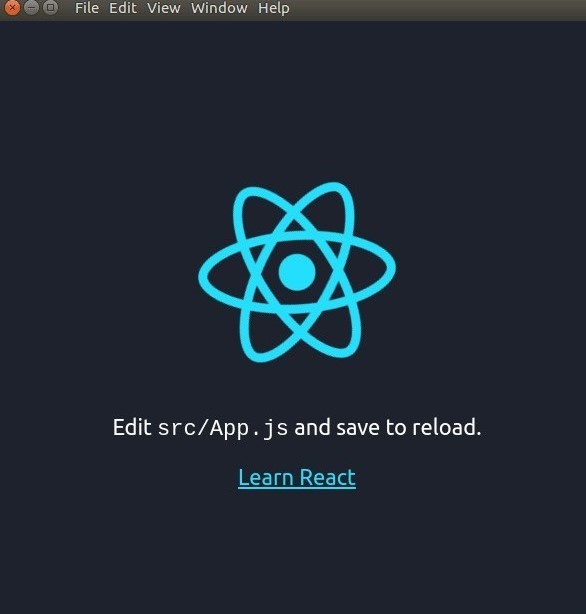
Congratulations!! Your first desktop application is up and running!!
Now all you need to package your application is to run npm run package.
Final notes
Watch this space for more!!